Guides
How to Extract Brand Colors From Any Website
Four ways to pull the exact hex codes off a live site (DevTools, the CSS, a screenshot, and an extractor) and which one is right for each job.
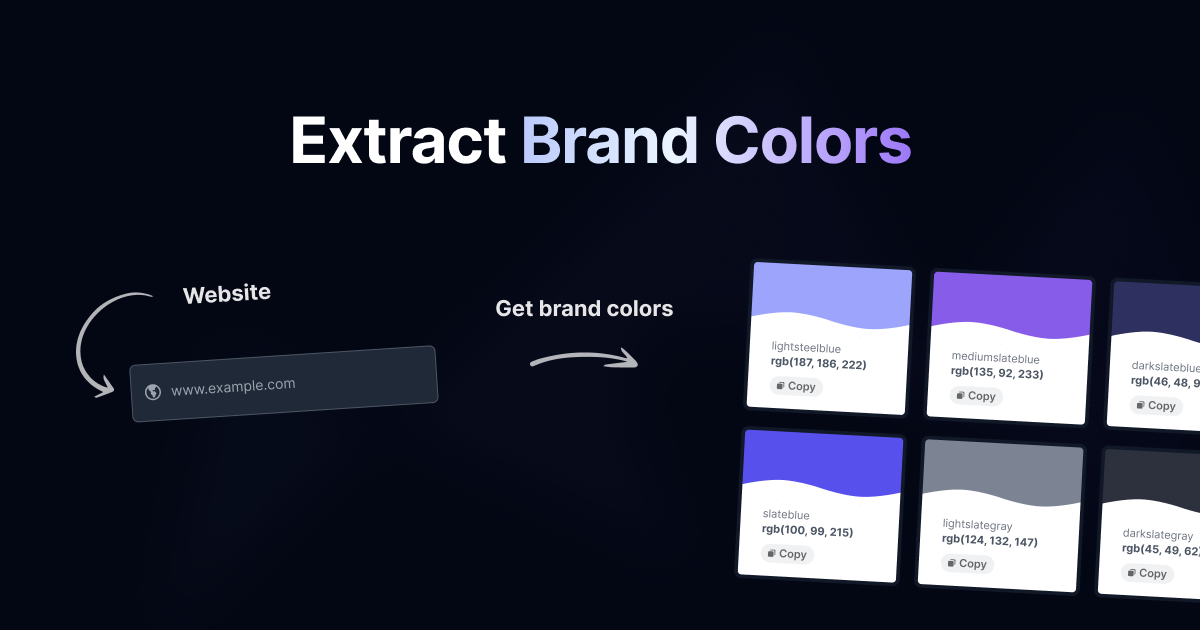
You need the exact colors a site uses, and you need them as hex codes rather than as a hunch. Maybe you're building a pitch deck for a client, matching an integration to a partner's brand, or rebuilding a design system that only exists inside a stylesheet nobody wrote down. There are four ways to do it, they disagree with each other more often than you'd expect, and picking the wrong one is how you end up shipping a near-miss.
Here's what each method actually gives you, and when the difference matters.
#The four methods, briefly
| Method | Gives you | Best for | Time |
|---|---|---|---|
| DevTools eyedropper | One color, exactly as rendered | Checking a single element | Seconds |
| Reading the CSS | Every declared color, with names | Rebuilding a design system | 10-30 min |
| Screenshot sampling | What a visitor actually sees | Imagery, gradients, video | A minute |
| An extractor | All of the above, sorted | Anything at scale | Seconds |
The first three are manual and free. The fourth is what this site does, and the honest reason to reach for it is volume. One site is a five-minute job, and forty sites is a week.
#Method 1: the DevTools eyedropper
The fastest answer to "what is that color". Open DevTools, inspect the element, click the color swatch next to any color property, and use the picker that opens.
So the eyedropper answers "what pixel is this", which is a different question from "what color did they specify". Most of the time you want the second one.
#Method 2: read the stylesheet
This is the method that gives you the brand's own vocabulary rather than your guess at it. Modern sites declare their palette as custom properties near the top of the document, and those names are the design system:
:root {
  --color-brand-primary: #6366f1;
  --color-brand-accent: #22d3ee;
  --color-surface: #030712;
  --color-text-muted: #9ca3af;
}
To find them, open DevTools, select <html> in the elements panel, and scroll the Computed styles pane to the bottom, where every custom property in scope is listed with its resolved value. Or run this in the console to dump every variable the page defines:
const styles = getComputedStyle(document.documentElement)
Array.from(styles)
  .filter((name) => name.startsWith('--'))
  .map((name) => `${name}: ${styles.getPropertyValue(name).trim()}`)
  .forEach((line) => console.log(line))
You get names as well as values, and names are what tell you a color's job. --color-brand-primary is a promise about where that color belongs; #6366f1 on its own is just a number.
#What this method misses
Three things, and they're the reason it isn't the whole answer:
- Colors inside images. A logo's exact orange lives in an SVG or a PNG, not in the CSS.
- Gradients and overlays. What renders is a blend the stylesheet never names.
- Colors declared in components you haven't loaded. A dark-mode-only or logged-in-only token won't be in scope on the homepage.
#Method 3: sample a screenshot
Take a full-page screenshot and run it through a color quantizer. This is the only method that captures what a visitor actually sees, including the colors in photography, in video posters, and in gradients that no stylesheet mentions.
It's also the method most likely to hand you something useless. A hero photo of a blue sky will dominate the results and tell you a company's brand color is #8EC5E8, which it is not. Screenshot sampling answers "what is this page made of", not "what does this brand stand for". Treat it as evidence, not as an answer.
#Method 4: use an extractor
An extractor runs all three passes at once and, crucially, keeps their results separate rather than averaging them into one pile. That separation is the whole value:
#6366F1 Code
#22D3EE Screenshot
#030712
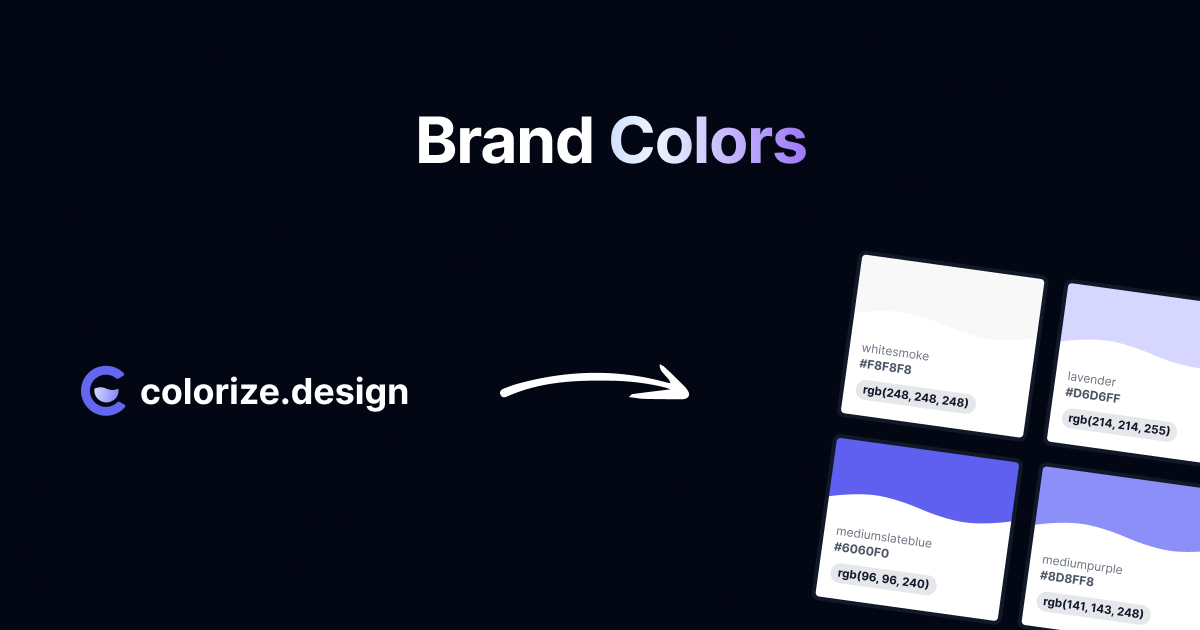
- Brand colors. The small set from the logo and the primary interface. The three or four you'd actually name if someone asked.
- Code colors. Everything declared in the stylesheets, grouped by family. The full system, including the shades you'd otherwise miss.
- Screenshot colors. What rendered, including imagery and gradients.
You can run this on any URL in a few seconds, or browse the brand colors of the world's most-visited sites, which are already extracted and sitting there as copyable hex codes. If you find yourself doing it constantly, the browser extension does it for the tab you're on without leaving the page.
#Which one to use
- One element, right now. Eyedropper. Just remember what alpha does.
- Rebuilding a design system. Read the CSS. You want the names.
- Matching a marketing asset to a live page. Screenshot sampling, because that's the comparison your eye will make.
- More than a handful of sites. An extractor, because the manual methods don't scale and the arithmetic is brutal: thirty sites at five minutes each is most of a day.
The mistake worth avoiding is treating any single number as the brand color. A brand is a small set of colors with defined roles and defined relationships. Pull the set, keep the roles, and the result holds up when you put it on a background nobody planned for.
#Getting the codes into your tools
However you extracted them, you'll want them somewhere other than a browser tab. Hex is universal, but most design tools prefer their own format, and a palette exported as an .ase or .gpl file drops straight into Adobe apps, Figma, Sketch, GIMP and Procreate with the names intact.
That last part matters more than it sounds. A swatch called brand/primary survives being handed to someone else; a swatch called #6366F1 doesn't.